ArticlesFixes
"A newer product version is already installed": Intel AX200 and Killer AX1650 Wi-Fi driver fix
Updated
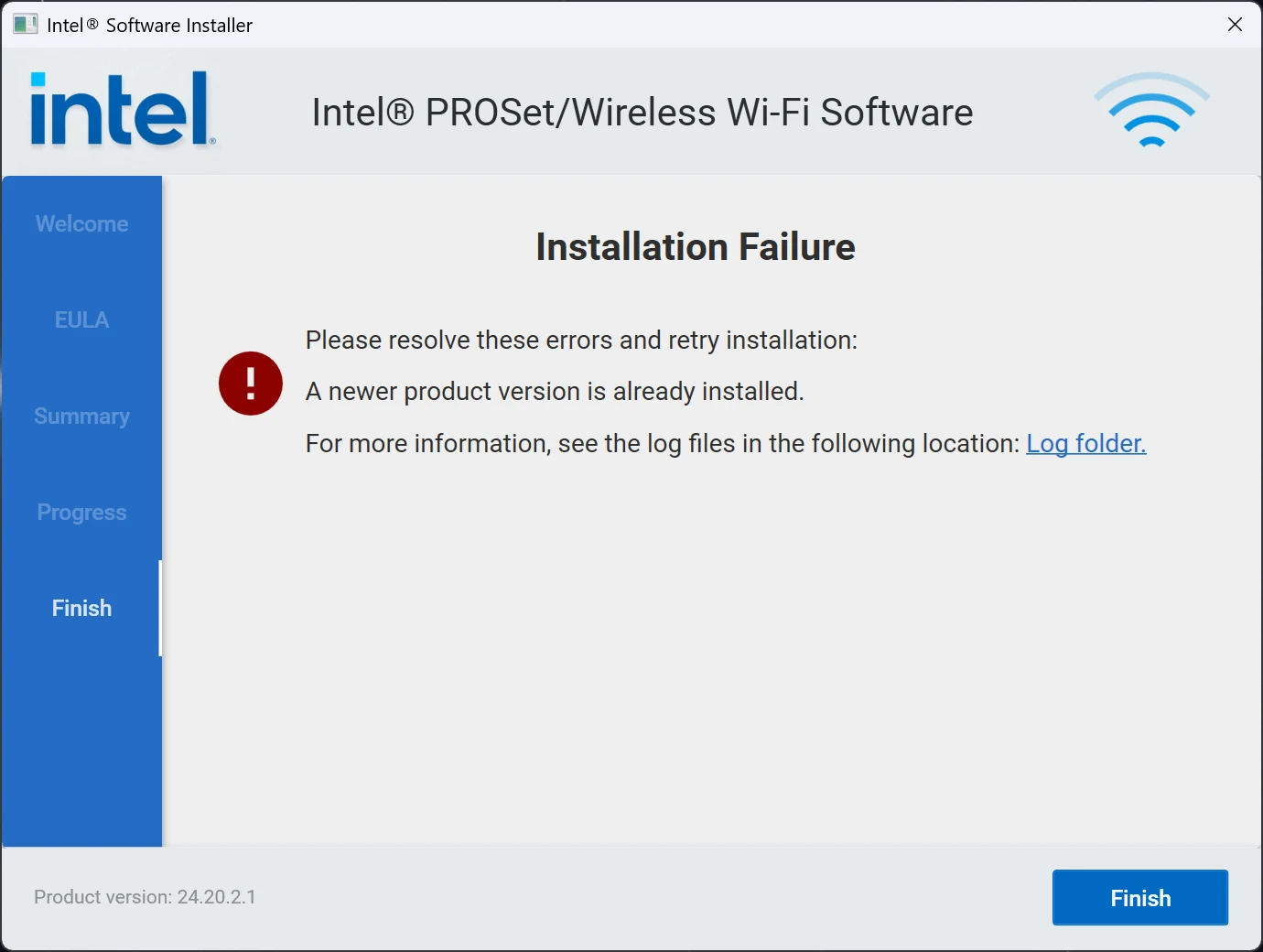
This error appears when you install the Intel AX200 Wi-Fi driver after Intel's main Wi-Fi driver package is already on your PC. To fix it, uninstall the main package from the Registry Editor, then run the AX200 installer again.
Applies to
- Intel Wi-Fi 6 AX200
- Killer Wi-Fi 6 AX1650x and AX1650w
Other adapters Intel has dropped from its main Wi-Fi package may run into the same error.
Why it happens
- Intel discontinued the AX200 and removed it from its main Wi-Fi package. The Killer AX1650x and AX1650w are AX200s with Killer branding, so they were removed too.
- Installing the main package anyway still registers it on the system, but your adapter isn't updated, because the package contains no driver for it.
- The AX200 installer compares package version numbers, not whether the installed package actually includes a driver for your card. It sees the newer main package, assumes you're downgrading, and blocks the install.
- The main package registers itself with
SystemComponentset to 1, which tells Windows to leave it out of Settings → Apps, so it can't be uninstalled from there.
The AX200 package has a lower version number than the main one. That's expected, since it's the last driver Intel released for this chip.
The fix
- Press Win+R, type
regedit, and press Ctrl+Shift+Enter to open the Registry Editor as administrator. - Go to
HKEY_LOCAL_MACHINE\SOFTWARE\Microsoft\Windows\CurrentVersion\Uninstall. You can paste the path into the address bar at the top and press Enter. - With the Uninstall key selected, press Ctrl+F, search for
Intel, and press Enter. -
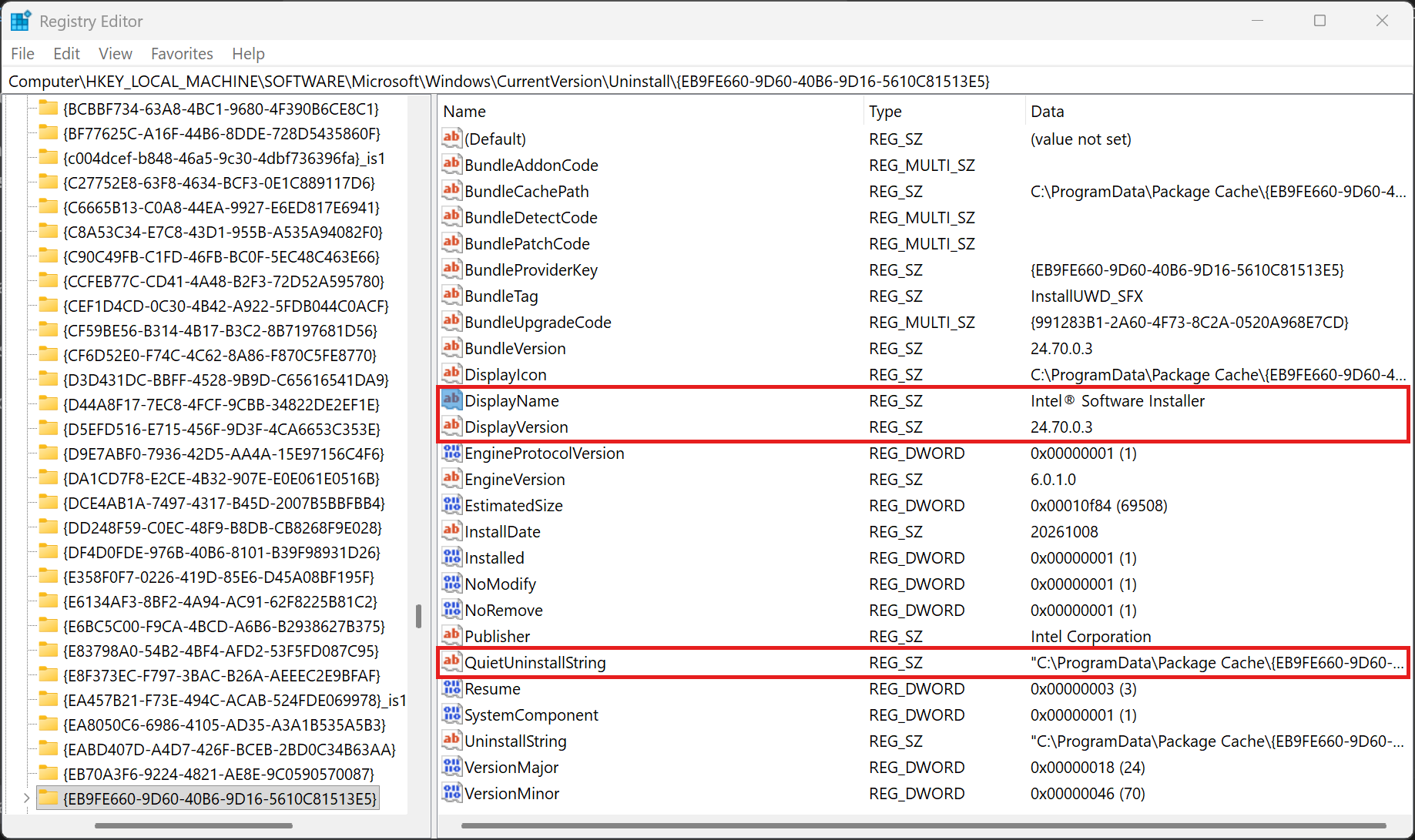
Use the DisplayName and DisplayVersion values on the right to tell whether the match belongs to the package you installed by mistake. The main package shows up as Intel® Software Installer with a DisplayVersion higher than the AX200 package's own version (shown as Product version at the bottom of its installer). The version here may not match the number on Intel's download page: in this example the leftover entry is 24.70.0.3, while the AX200 package is 24.20.2.1.
-
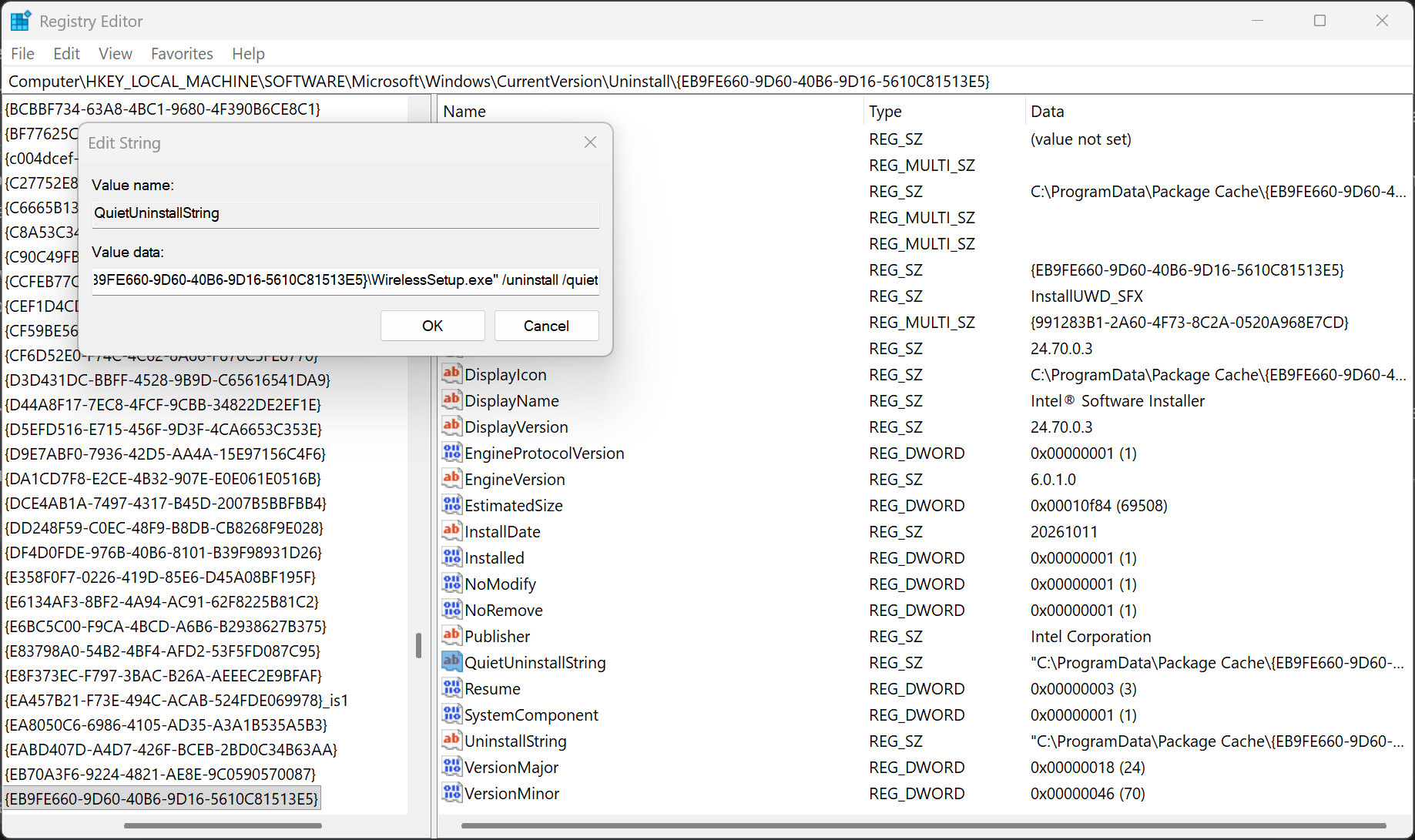
Double-click QuietUninstallString and copy its whole value.
-
Press Win+R, type
cmd, and press Ctrl+Shift+Enter to open Command Prompt as administrator. Paste the value and press Enter. Use Command Prompt rather than PowerShell, which won't run a value that starts with a quoted path. The command looks like this, with a different ID in the path on your PC:"C:\ProgramData\Package Cache\{EB9FE660-9D60-40B6-9D16-5610C81513E5}\WirelessSetup.exe" /uninstall /quiet -
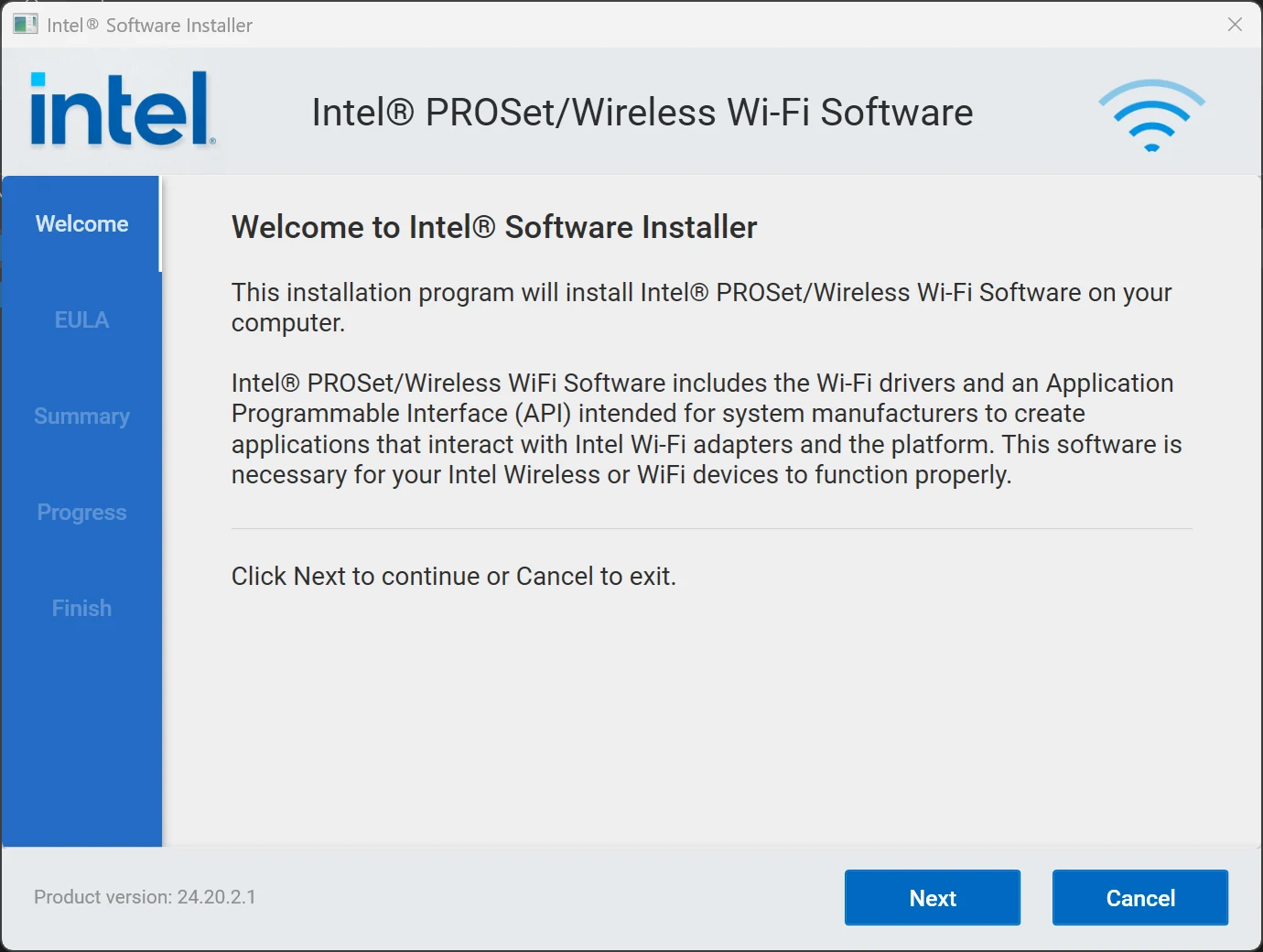
Run the AX200 installer again. If you need to download it, it's listed in Intel's wireless downloads. It should now install normally.
- Confirm it worked: in Device Manager, expand Network adapters, open your adapter's properties, and check on the Driver tab that the Driver Version and Driver Date have changed.
After the driver is installed
The Network guide covers tuning the adapter once its driver is current, including the Intel Wi-Fi roaming and MIMO power save settings.